
Warehouse device: take and book in material
For cleaning staff and caretakers on the warehouse phone or tablet
With the warehouse device you book material directly at the shelf. The device also works without internet.
In short
- 1. Tap your name, enter PIN
- 2. Scan storage place
- 3. Choose item and quantity
- 4. Book – done
Sign in
- Open SmartSupply on the warehouse device.
- Tap your name.
- Type your PIN.
- Tap the key with the arrow.
- At the top you now see "Hello" and your name.
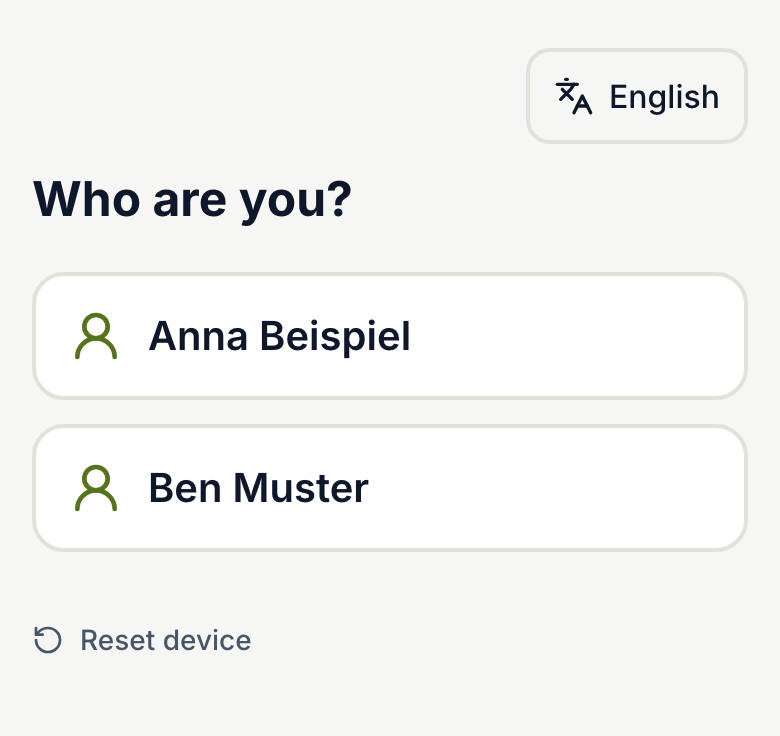
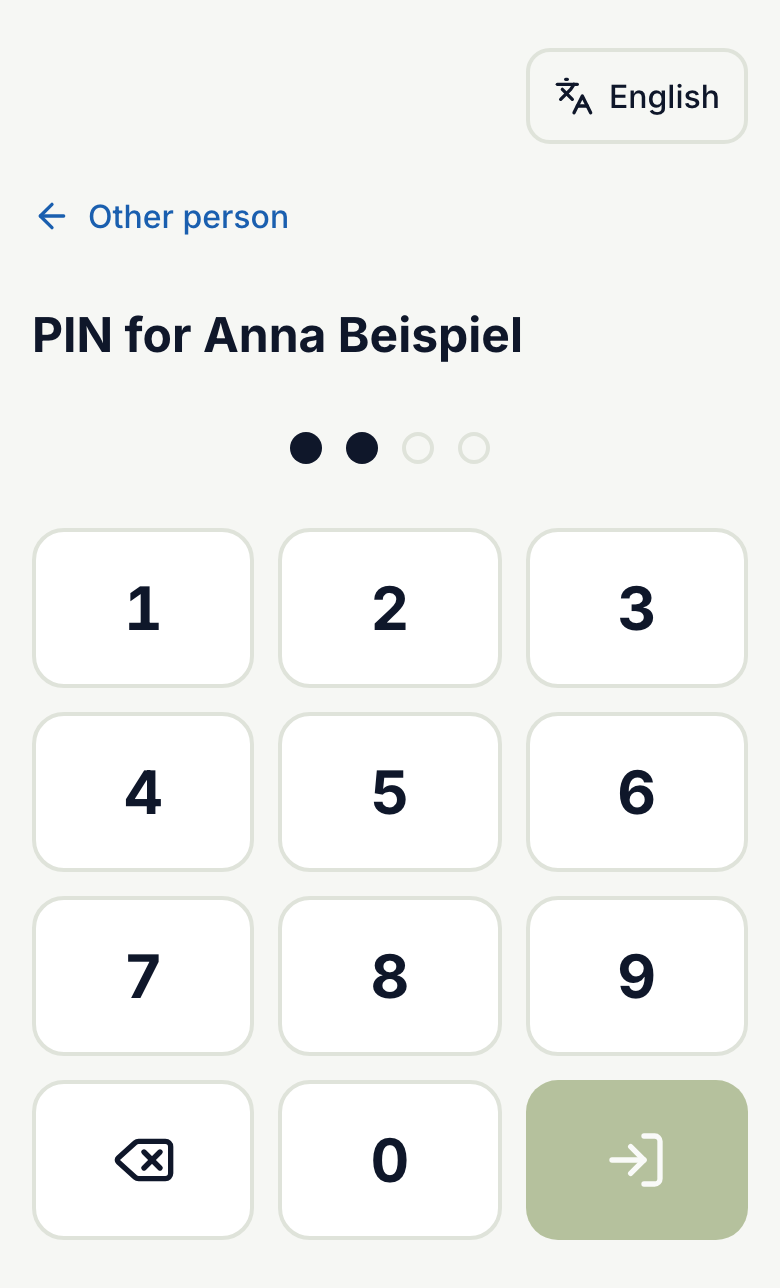
Tip: Your name is missing or you have no PIN? Please ask the office.
Attention: After too many wrong attempts the PIN is locked. The office can set a new PIN.
Choose language
- Tap "Language" at the top.
- Tap your language, for example "Türkçe".
- The app remembers your language for your name.
Tip: This guide is also available in your language: under "Help" and as a PDF.
Take material
- Tap "Scan storage place".
- Scan the QR code on the shelf. Or tap the storage place below, for example "R20".
- Tap the item.
- "Take" is already selected.
- Under "Unit" the whole pack is selected, for example "PCK". For single pieces tap "ROL" or "STK".
- Set the quantity with minus and plus.
- Tap the big button, for example "Take 2".
- You see "Booked" with a tick. Done.
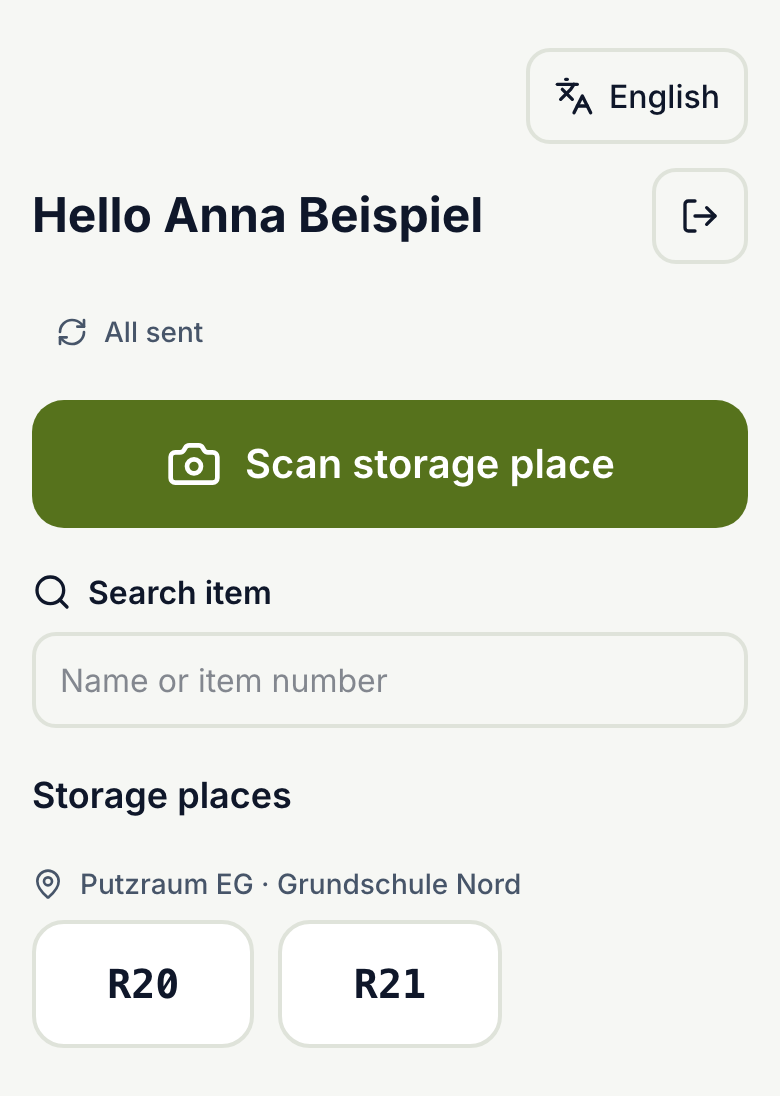
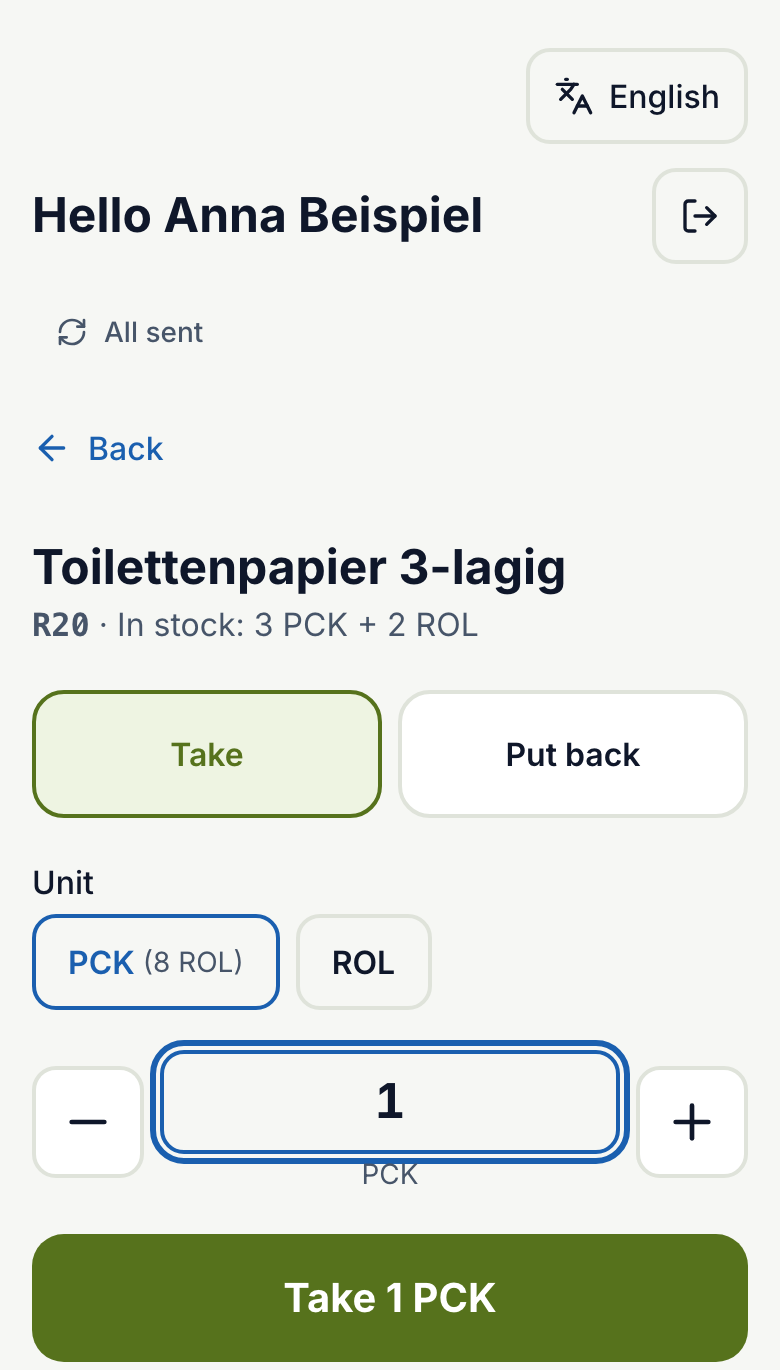
Tip: Item not at this place? Tap "Other item". You can also type the name under "Search item" at the top.
Put material back
- Scan the storage place and tap the item, as when taking.
- Tap "Put back".
- Under "Unit" choose what you bring back: single pieces, for example "ROL", or a whole pack.
- Set the quantity, for example 2.
- Tap the big button, for example "Put back 2".
Tip: Example: Anna takes a pack of 8 rolls but needs only 6. She puts 2 rolls back. The stock then shows for example "3 PCK + 2 ROL": 3 full packs and 2 loose rolls.
Attention: Please only put back unused material. "Put back" also helps after a typing mistake: then the stock is right again.
Book by voice
- Scan the storage place.
- Tap "Book by voice".
- Say clearly what you take. For example: Two packs of hand towels. Or: Three rolls of toilet paper back.
- The app shows the item with quantity and unit. Please check and change it if needed.
- Is everything right? Tap the big button. Only then is it booked.
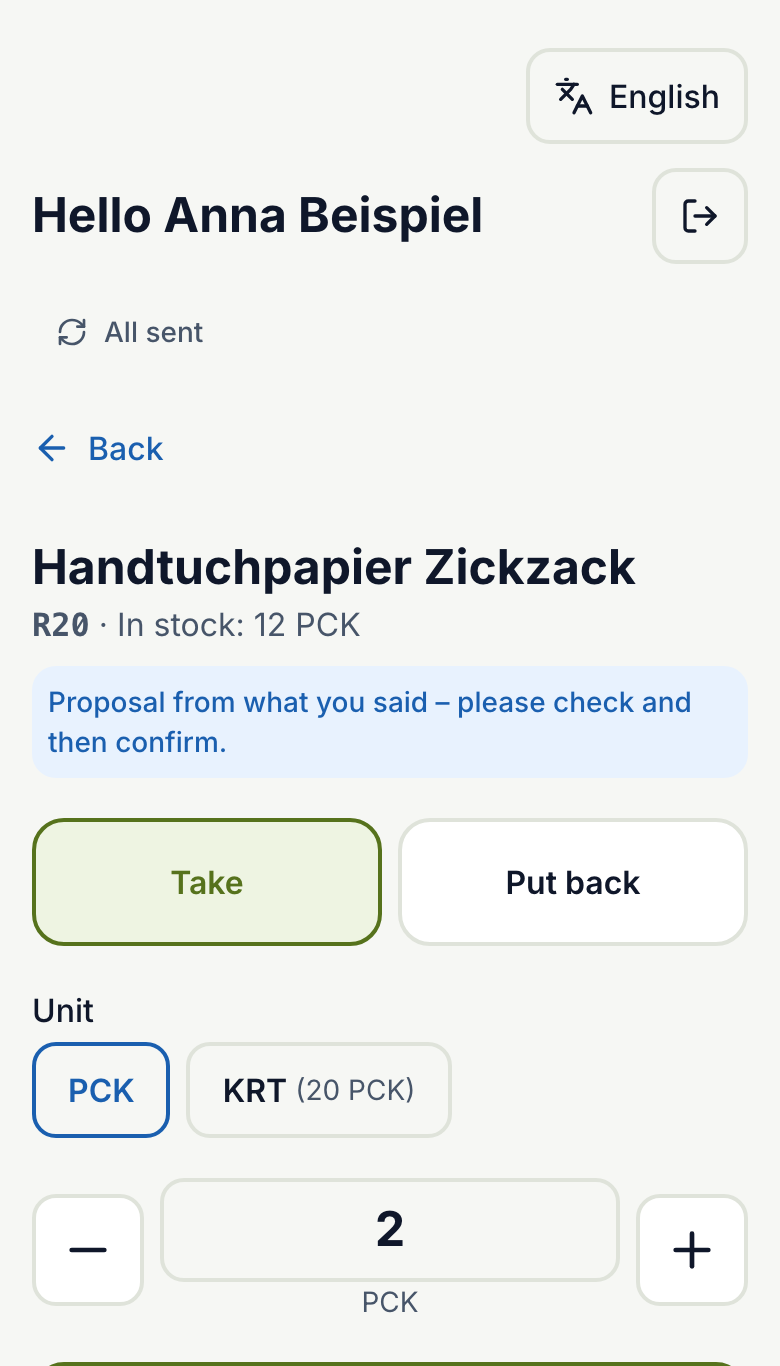
Tip: You can also speak in your language. The first time, the phone asks whether the app may use the microphone. Please allow it.
Attention: Booking by voice does not work without internet. Then tap the item as usual.
Book by photo
- Scan the storage place.
- Tap "Book by photo". The camera opens.
- Photograph the material you take or put back. All packs should be easy to see.
- The app shows the item with quantity and unit. Please check: is the quantity right? If you are putting something back, tap "Put back".
- Is everything right? Tap the big button. Only then is it booked.
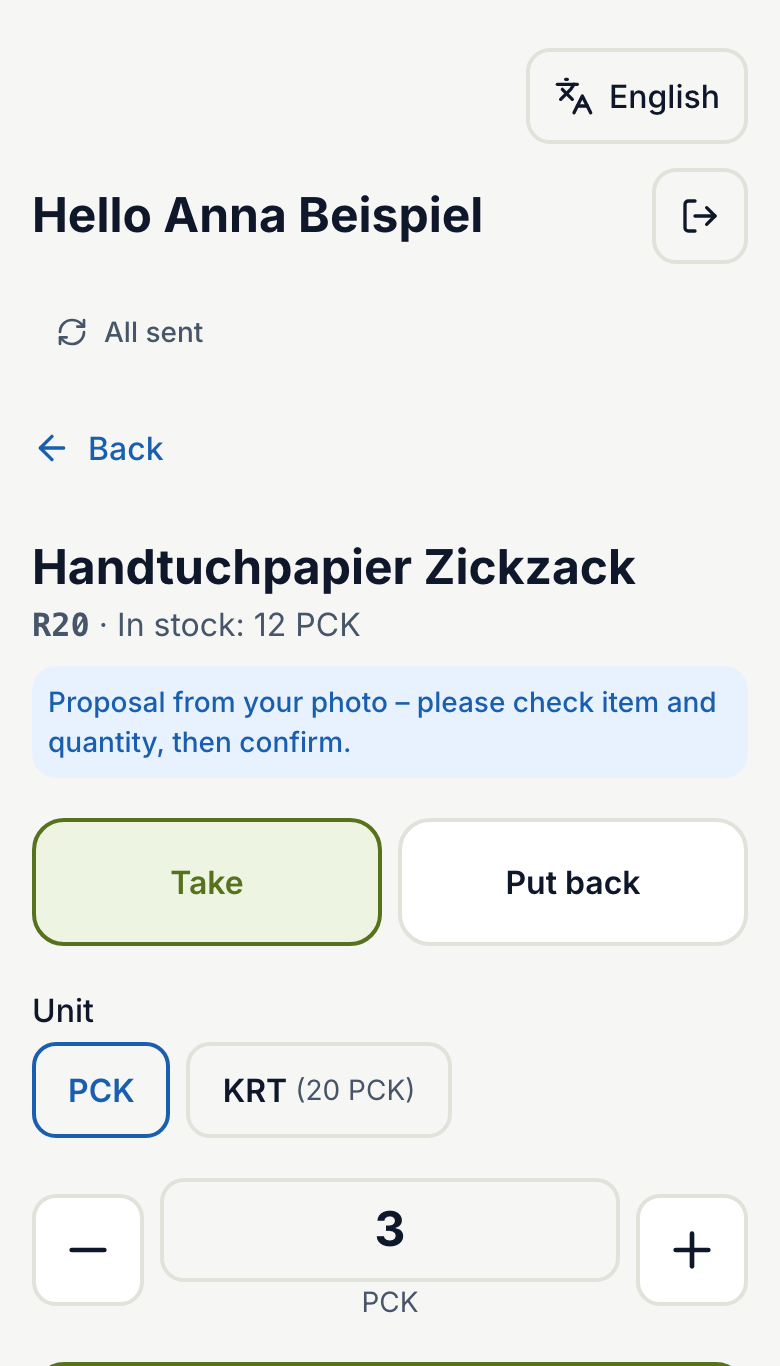
Tip: The AI compares your photo with the product photos of the items at this storage place. The photo is not stored.
Attention: Only photograph the material, no people. Booking by photo does not work without internet – then tap the item as usual.
Note on dosage
- After signing in, a yellow box "Note on dosage" sometimes appears.
- Read it: which cleaning agent is it about, and how much should you use?
- From now on, dose the agent exactly like this.
- Tap "Understood". Then this note will not come again.
Tip: The note appears when much more of an agent was used than before and the caretaker says that nothing has changed.
Attention: The dosage text is in German. If you have questions, please ask the caretaker.
Question about the product
- Scan the storage place and tap the item, as when taking.
- Tap "Question about the product". The button is only there if a safety data sheet has been added.
- Tap a question, for example "Do I need gloves?". Or type your own question and tap "Ask".
- Read the answer. Below it you see on which page of the data sheet it is.
- Want to read more? Tap "Open data sheet".
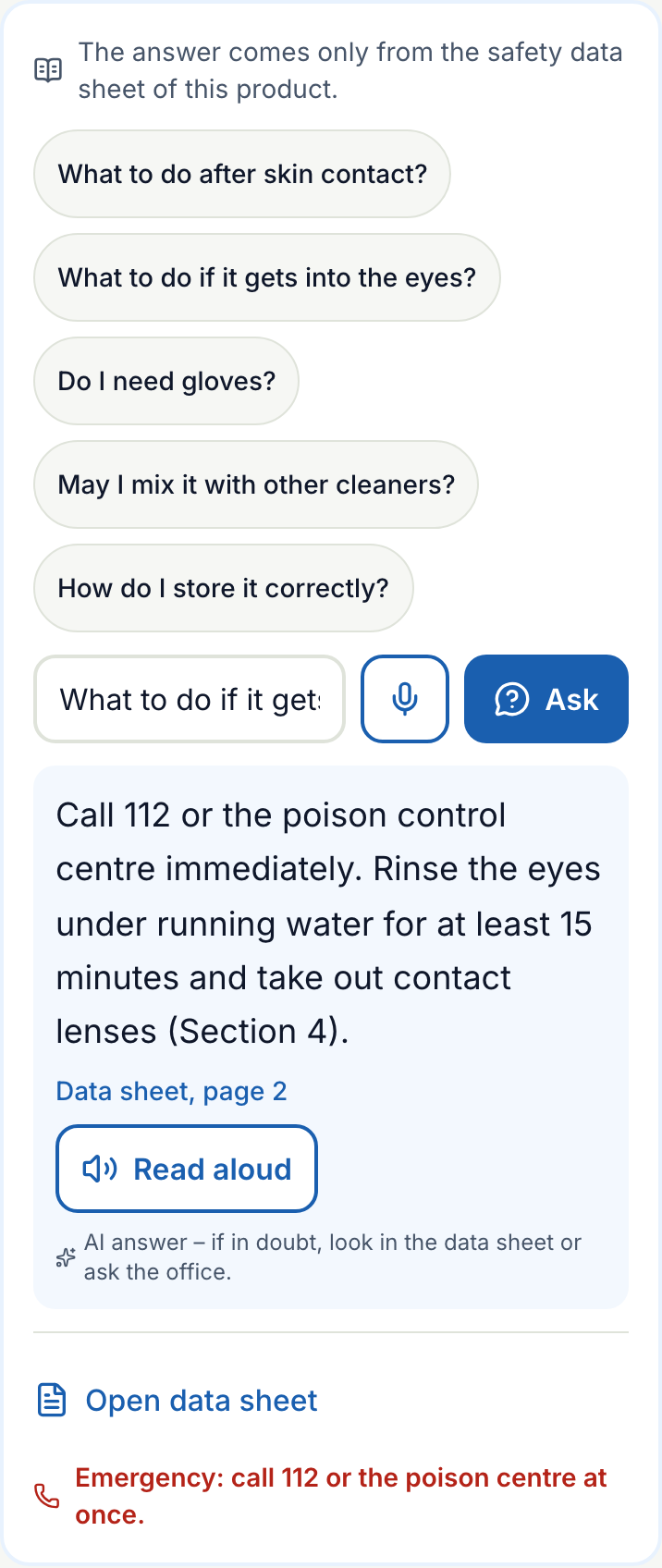
Tip: Ask in your language: the answer comes in the same language, only from the data sheet. With the microphone next to the input field you speak the question; with "Read aloud" you hear the answer. The device needs internet for questions.
Attention: After an accident do not ask first: call 112 or the poison centre at once.
Working without internet
- Just keep working. At the top you see "Offline – bookings are saved".
- When the internet is back, the device sends everything by itself.
- At the top you then see "All sent".
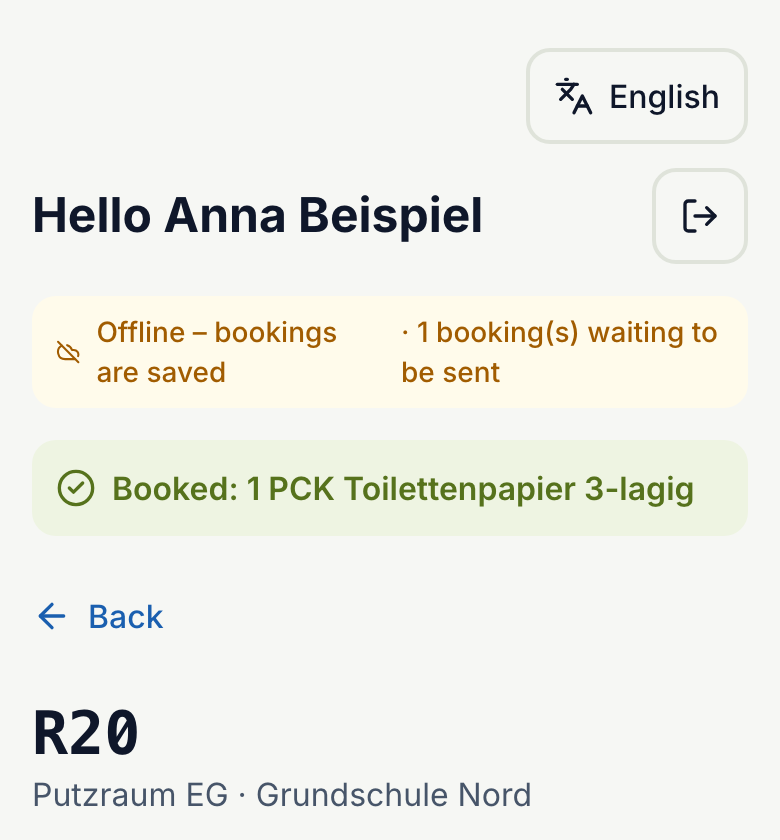
Attention: While bookings are waiting: do not delete the app and do not delete browser data. A red message means: a booking could not be accepted. The office takes care of it.
Sign out
- Tap "Sign out" at the top right.
- The device shows the list of names again.
Tip: Always sign out before you hand the device to someone else. Otherwise the next person books under your name.
Book in goodsCaretakers only
- Scan the storage place where the goods are put.
- Tap the item.
- Tap "Goods in".
- Under "For delivery" choose the matching delivery if it is shown.
- Set the delivered quantity.
- Tap the big button, for example "Book in 10".
Tip: Goods spread over several places? Book in each place separately.
Stocktaking: count the stockCaretakers only
- The stocktaking is started in the office.
- Scan the storage place and tap the item.
- Tap "Count". You see "Stocktaking in progress – count without looking at the stock".
- Count what is really on the shelf. Enter the quantity.
- Tap the big button, for example "12 counted".
Attention: Counting only works with internet and only while a stocktaking is running.
SEPEX SmartSupply · Short guide · As of 13.11.2026